Analog design and sign-off
Draw or write an analog circuit with the kit's own devices, set a specification, sweep a size, and sign it off over corners, temperatures and Monte Carlo, with Nelix Agent reviewing the results.
On this page
Start a circuitIndustrial blocksThe kit's own devicesEditing a drawingParameter sweepsSpecificationSign-off: corners, temperatures and Monte CarloReading a run pageAsk Nelix AgentLayout, and what is not coveredThe Analog Lab simulates transistor-level circuits with ngspice and the process kit's own models (SKY130, GF180MCU and IHP SG13G2). Every number on a run page is measured by the simulator. Those numbers are the authority; an AI explanation never overrides them.
Start a circuit#
The analog design flow is the usual way in: New project → Analog gives you seven starters (inverter, current mirror, differential pair, 5-transistor OTA, ring oscillator, bandgap, blank), each a working schematic with a testbench and targets, and walks you through Schematic → Simulate → Layout → Verify → Post-layout. It is described step by step in The Analog Lab.
A project's own Analog page also has three direct ways in, under Add a circuit:
- Draw. Place parts on a grid, wire them, name the nets, choose what to simulate, then Save and run. The drawing is saved as
analog/<name>.jsonand the lab makes the netlist from it. - From the library. Lesson circuits, plus industrial blocks: a bandgap reference, an LDO regulator, a StrongARM comparator, a folded-cascode amplifier and a ring oscillator, each for all three kits, with a starting specification.
- Write a netlist. Your own ngspice netlist. The lab checks it before it runs.
Everything on this page — sweeps, the specification, sign-off and the run page — works the same for a design-flow project and for a circuit added directly.
Industrial blocks#
On the Analog Lab home, choose a block, a process and a project under Industrial blocks, then Add to project. In a project, use Add a circuit → From the library. It arrives as a new file with its own specification, so the first run already shows pass or fail. Every block was run in the lab's tool image at tt/ff/ss corners, at -40, 27 and 125 °C, and with Monte Carlo mismatch.
Typical values at tt and 27 °C:
| Block | SKY130 | GF180MCU | IHP SG13G2 |
|---|---|---|---|
| Bandgap reference (low-voltage, Banba type) | 0.84 V, 18.5 ppm/°C, PSRR 71 dB, 25 µA | 1.25 V, 16.8 ppm/°C, 68 dB, 23 µA | 0.52 V, 33 ppm/°C, 43 dB, 7 µA |
| LDO regulator | 1.8 → 1.5 V at 10 mA, phase margin 83°, dropout 71 mV | 3.3 → 2.5 V at 10 mA, 59°, 67 mV | 1.2 → 1.0 V at 5 mA, 105°, 47 mV |
| StrongARM comparator (±10 mV input) | 156 ps, 115 fJ per decision | 267 ps, 1.1 pJ | 183 ps, 80 fJ |
| Folded-cascode amplifier (1 pF) | 73 dB, 52 MHz, 83° | 82 dB, 43 MHz, 85° | 49 dB, 64 MHz, 84° |
| Ring VCO (5 stages) | 0.3–1.44 GHz, 2.9 GHz/V | 90–390 MHz, 375 MHz/V | 0.82–1.43 GHz, 2.4 GHz/V |
Known limits, also shown on each block's run page:
- Bandgap temperature drift: an untrimmed bandgap drifts with mismatch, so the ≤ 30 ppm/°C line passes in about 7 of 10 Monte Carlo samples on SKY130 and GF180. Real chips trim this.
- IHP's 1.2 V supply leaves little headroom. Its bandgap supply rejection and its LDO load regulation are the weakest numbers in the table.
- What sign-off changes: only the transistor corners. The resistor and bipolar models stay typical.
The kit's own devices#
In the drawing editor, each part can be a real device from the kit, not only an ideal one:
| SKY130 | GF180MCU | IHP SG13G2 | |
|---|---|---|---|
| Transistors | 1.8 V core, low-Vt, high-Vt (PMOS), native, 5 V thick-oxide | 3.3 V core, 6 V thick-oxide, native | 1.2 V core, 3.3 V thick-oxide |
| Resistors | poly, high and very high ohms | poly 1 kOhm/sq, poly low ohms, n+ diffusion | rhigh, rppd, rsil |
| Capacitors | MIM (metal 3, metal 4) | MIM 2 fF/µm² | MIM |
| Bipolar | NPN, vertical PNP | NPN, vertical PNP | SiGe HBT (NPN) |
Each device's smallest length and width come from the kit, and the editor will not accept less. A kit resistor or capacitor takes its value from its size and the kit's model. Every device in the table was simulated in the lab's tool image before it was offered.
Editing a drawing#
- Wire: click from pin to pin. A wire goes across first, then up or down.
- Several parts at once: Shift+click, or drag a box on an empty part of the grid. Drag one of the chosen parts and the rest move with it. Wires joined to a moved part follow it.
- Keys: arrow keys nudge, Ctrl+C / Ctrl+V copy and paste, Ctrl+D duplicates, Ctrl+A chooses everything, R turns a part, Delete removes, Ctrl+Z undoes.
- From a run back to the drawing: a run page made from a drawing has Edit.
- Take it to xschem: Download for xschem (.sch) (in the editor, and on the run page) saves the drawing as an xschem schematic. It uses the kit's own symbols, a net label on every pin, and a code block with the model lines and your analyses, so it simulates as it is. The lab checked that xschem's netlist of the export gives the same operating point as the lab's own netlist, on all three kits.
Parameter sweeps#
Under What to simulate, a parameter sweep runs every chosen analysis once for each value of one property. The property can be a transistor's W or L, a kit resistor or capacitor's size, or a source's value. Give 2 to 20 values, for example 1 2 4 8. The run page shows one row per value. If the circuit has a specification, each row is also marked pass or fail.
A sweep is for choosing a value. Afterwards, set that value on the part, turn the sweep off and run once more. That single design point is what you sign off.
Sweep a parameter on a finished run's page goes further: any W or L, any resistor, capacitor or source value, or any .param of that run's netlist (a project's design variable), one parameter as a line plot per target with the first failing point marked, or two as a grid (heat map per target, at most 64 simulations), with CSV and Ask Nelix Agent about this sweep. See The Analog Lab.
Specification#
On a finished run, the Specification button opens the circuit's measurements. Give each one a lower limit, an upper limit or both, for example ≥ 60 for phase margin or ≤ 200u for power. The specification is saved as analog/<circuit>.specs.json and applies to every later run and sign-off of that circuit. A measurement that was not printed counts as not measured, never as a pass.
Open the spec sheet gives a printable page with the specification, the results, pass or fail, and the exact tool and kit versions.
Sign-off: corners, temperatures and Monte Carlo#
On a finished run, Sign off simulates the exact netlist of that run again, in one new run:
- Process corners: tt, ff, ss, and the two skewed corners fnsp (fast NMOS, slow PMOS) and snfp (slow NMOS, fast PMOS). These use the kit's own corner models. On IHP, the thick-oxide transistors follow the same corner.
- Temperatures: -40, 0, 27, 85 and 125 °C.
- Monte Carlo mismatch: the kit's random device mismatch, with a new sample each run, at the typical corner and 27 °C.
The result is a table with these columns for each measurement:
- the worst low value and where it happened;
- the worst high value and where it happened;
- the Monte Carlo mean, sigma, minimum and maximum.
The full table can be downloaded as CSV. With a specification, the page also shows:
- whether every line passes at every corner and temperature;
- the Monte Carlo yield: how many samples meet every line.
Your files are never changed.
How many samples: industry reviews use 200 to 500; 20 to 50 is a quick look. One run has a 5-minute time limit and a 1 GB memory limit, so the form allows up to 60 samples on SKY130 (its mismatch models use the most memory) and 200 on GF180MCU and IHP SG13G2. On SKY130 all five industrial blocks finish 60. At 200, four of the five finish on GF180MCU (the ring VCO fits about 120) and three on IHP SG13G2 (the folded-cascode amplifier fits about 115 and the ring VCO about 40, because their simulations are slower); choose fewer samples for those. A large or slow circuit may stop early; its page then says stopped early and shows the samples that finished. Each sign-off draws its samples from a new random seed, printed in the log, so running it again adds new samples and any run can be repeated exactly. For more samples, run sign-off again and combine the CSV files.
Reading a run page#
A run page puts the numbers first:
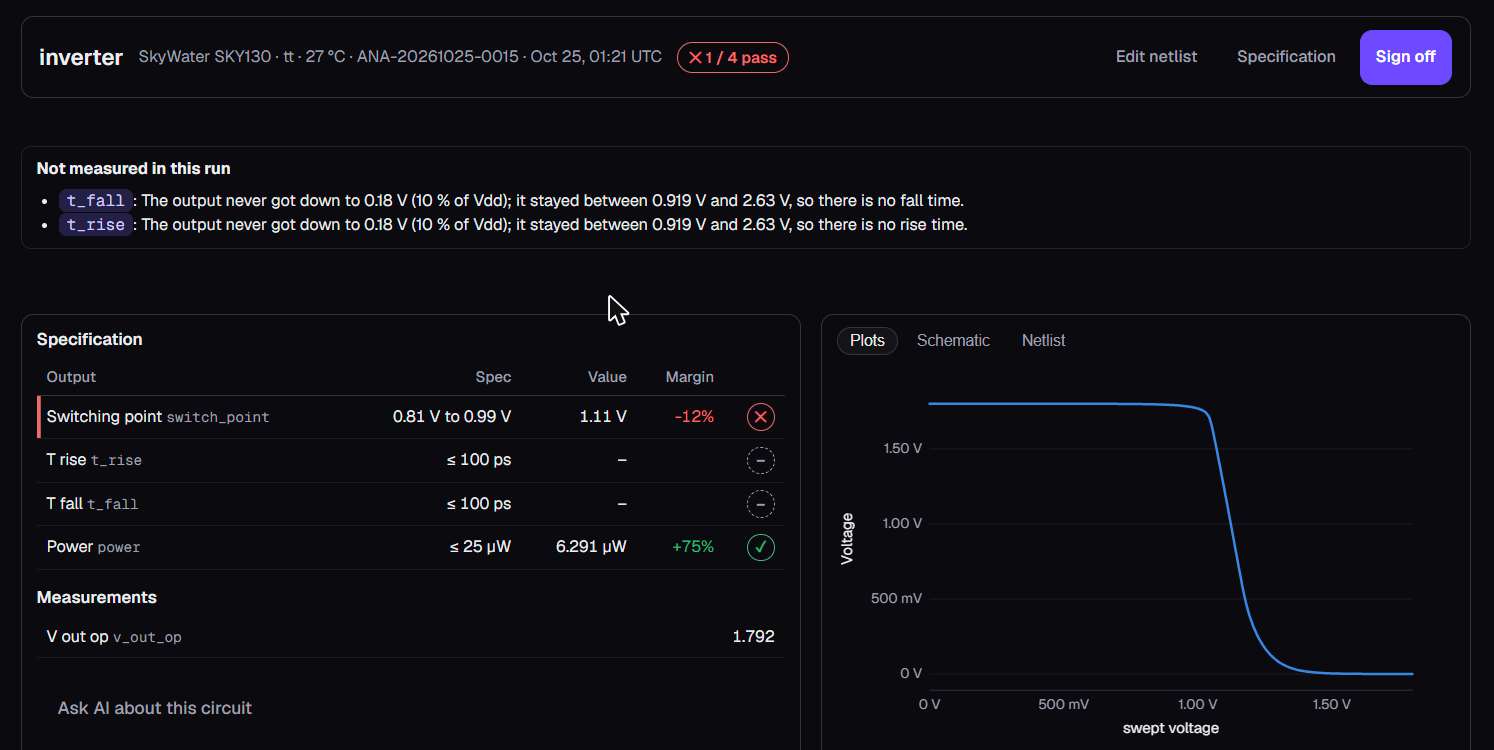
- Header: the circuit, the kit and conditions, and a badge such as ✓ 5 / 5 pass.
- Specification table: for each output, its value (or, for a sign-off, its worst value and the corner and temperature where it happened), the margin as a percentage of the limit, and a status mark:
- ✓ passes;
- ▲ near: passes by less than 10 % of the limit;
- ✕ fails;
- – not measured, which never counts as a pass.
- Order: failing and near lines come first.
- Sign-off grid: process corners down the side and temperatures across the top. For the output you choose, each cell shows its value and margin, coloured by status.
- Monte Carlo panel: a histogram with the limit drawn in, the number of samples that pass, and the mean, sigma, minimum and maximum.
- Folded away: files, the log, tool and kit versions, and the netlist editor sit in Run details.
Ask Nelix Agent#
On a run page, Ask AI about this circuit reads what the page shows: the results, and for an engineer's own circuit also:
- the specification and its pass/fail;
- the sign-off table;
- a sweep;
- the circuit's device lines;
- the kit devices on offer.
It can then:
- say which specification lines fail, by how much, and at which corner and temperature;
- explain why;
- suggest at most two design changes, with what each costs;
- name the next step on the page, for example running sign-off.
It cannot quote numbers that are not on the page, and it never changes your files. On graded class work it explains concepts only.
Layout, and what is not covered#
- Layout, DRC, LVS, extraction and post-layout simulation are part of every design-flow project: draw the layout in Magic or KLayout, upload it, and the Verify and Post-layout steps check it against your schematic. See The Analog Lab. A circuit added directly on a project page is still simulated from the schematic only.
- The starters' testbenches already include the analyses they need: the OTA's testbench measures DC gain, bandwidth, phase margin, slew rate, settling time, CMRR, PSRR and the integrated input noise, for example. A supply-variation (±10 %) check over corners and temperatures is the Spec sheet by corner card on a flow project's Simulate step; a start-up check is not run for you: add it as an analysis and measurement in your own netlist.
- The lab's sign-off is a simulation study with the open kits' own models and rule decks, not a foundry sign-off.
Something unclear or missing? Send feedbackSign in and use Feedback to tell us.