Analog Lab
Simulate real transistor circuits with SPICE on three open processes, follow the five-step analog flow with the Analog Pro cards (waveforms, sweeps, corners, variables, layouts, reliability), learn analog design from zero, and play with circuits in the Analog Studio.
On this page
The analog design flowYour first analog circuitMore circuits on a project's Analog pageSweeps and sign-offThe run pageThree processesAsk AI about this circuitAnalog ProOn the Schematic stepOn the Simulate stepOn the Layout and Verify stepsOn the Post-layout stepLearn analog from zeroAnalog StudioGood to knowThe Analog Lab is for circuits made of transistors rather than logic gates. Each run is a real ngspice simulation on the lab's server, and the results come back as curves and in plain words.
Open it from Analog Lab in the left sidebar.
The analog design flow#
New analog projects follow the steps a professional analog designer takes: Schematic → Simulate → Layout → Verify → Post-layout. A bar at the top of every step shows where you are and what is done.
The Analog Lab home (Analog Lab in the sidebar) has the same shape as the digital Home: one line saying what happened last, a Next step sentence with its button, a Continue card for the design you were on with its five steps and their results (for example 4 of 4 targets met, DRC clean · LVS match), Your designs as rows with the same five-step line, Start something tiles (new project, pick a starter circuit, a lesson, Analog Studio, industrial blocks) and your recent runs. It fits a phone screen; ?classic=1 opens the previous home.
Start a project. Go to New project and choose Analog. Pick:
- A starter: CMOS inverter, current mirror, differential pair, 5-transistor OTA, ring oscillator, bandgap reference, or a blank sheet. Each starter is a real schematic with a testbench and targets, checked with the lab's own xschem and ngspice, so your first simulation passes.
- A process: SKY130 or GF180MCU (ready), or IHP SG13G2 (preview). ASAP7 is digital-only. The bandgap is not offered on IHP yet (the lab's IHP kit has no PNP transistor, which the bandgap needs); if your chosen starter is not on a process, the page says so and tells you which starter it picked instead.
- A name and your targets. The targets come from the starter for that process; change any of them. Write numbers as 40, 20M, 0.5m or 100p.
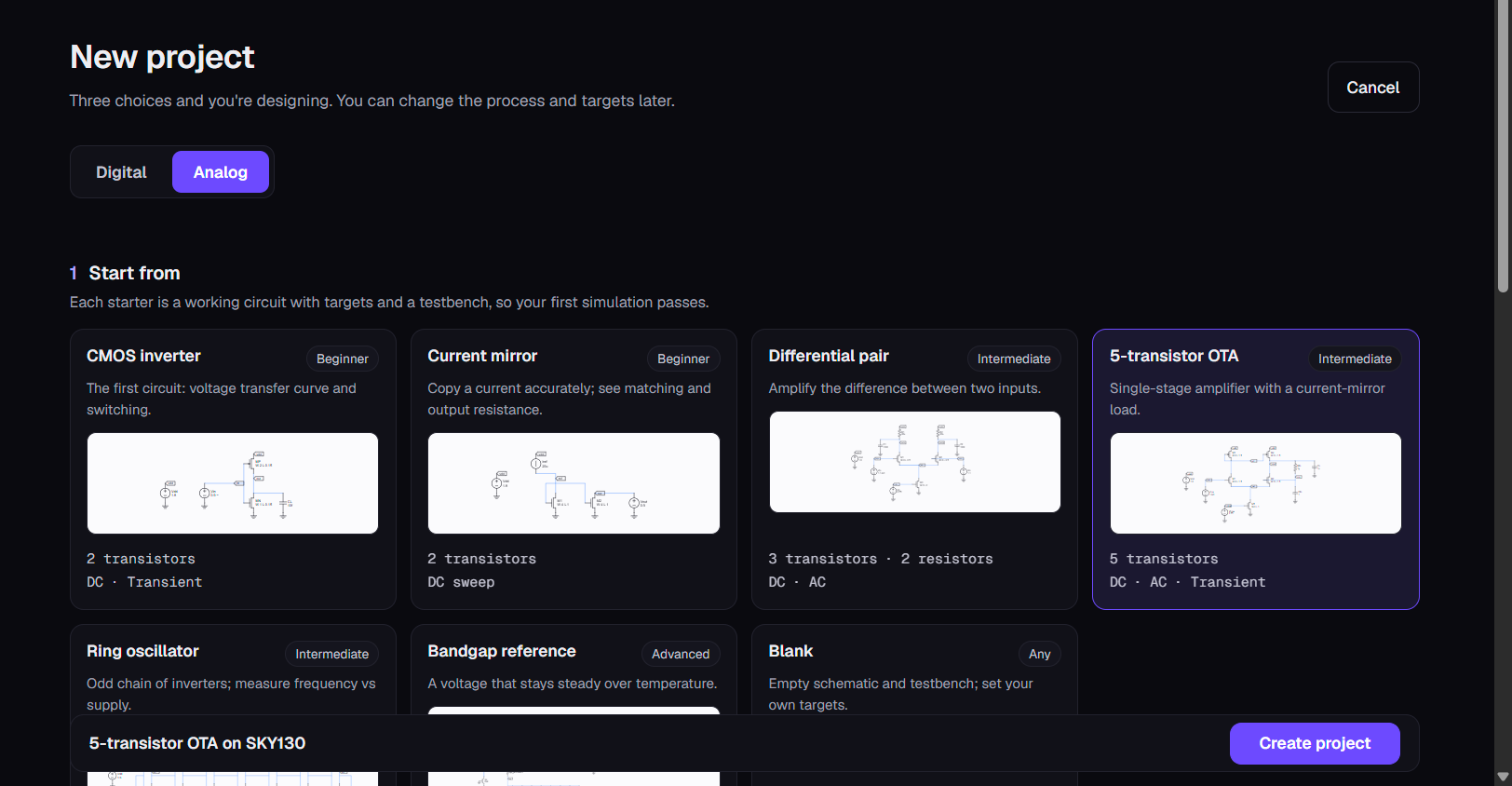
Press Create project. It opens at the Schematic step.
Schematic. The schematic is drawn from your project's own files. Choose a device on it to see its model, width W, length L, fingers and multiplier.
- The process's real minimum sizes are checked as you type, including the width of each finger.
- Save updates the schematic, its xschem file and the netlist together. Undo last change puts the previous version back.
- The schematic check tells you about shorted parts, pins with no path to ground, and whether the netlist is up to date.
- View SPICE netlist shows exactly what Simulate runs.
- Open editor opens the lab's schematic editor in a new tab, where you add and rewire parts. Download xschem file (.sch) gives you the xschem schematic for your own computer.
Draw it for me. Describe a change, and Nelix Agent drafts it on a copy of your schematic.
- The copy is marked Suggestion, not checked. It shows exactly what would change, and anything the process does not allow is left out.
- Nothing changes in your design until you press Accept. Accept can be undone.
- Each draft uses one Nelix Agent request, the same as Ask AI about this circuit.
- Students in a class set to No AI assistance, Evidence or Diagnosis cannot use drafts while one of the class's assignments is open (on any of their projects); the page names the class. It is the same rule Design Chat, repair and Autopilot follow.
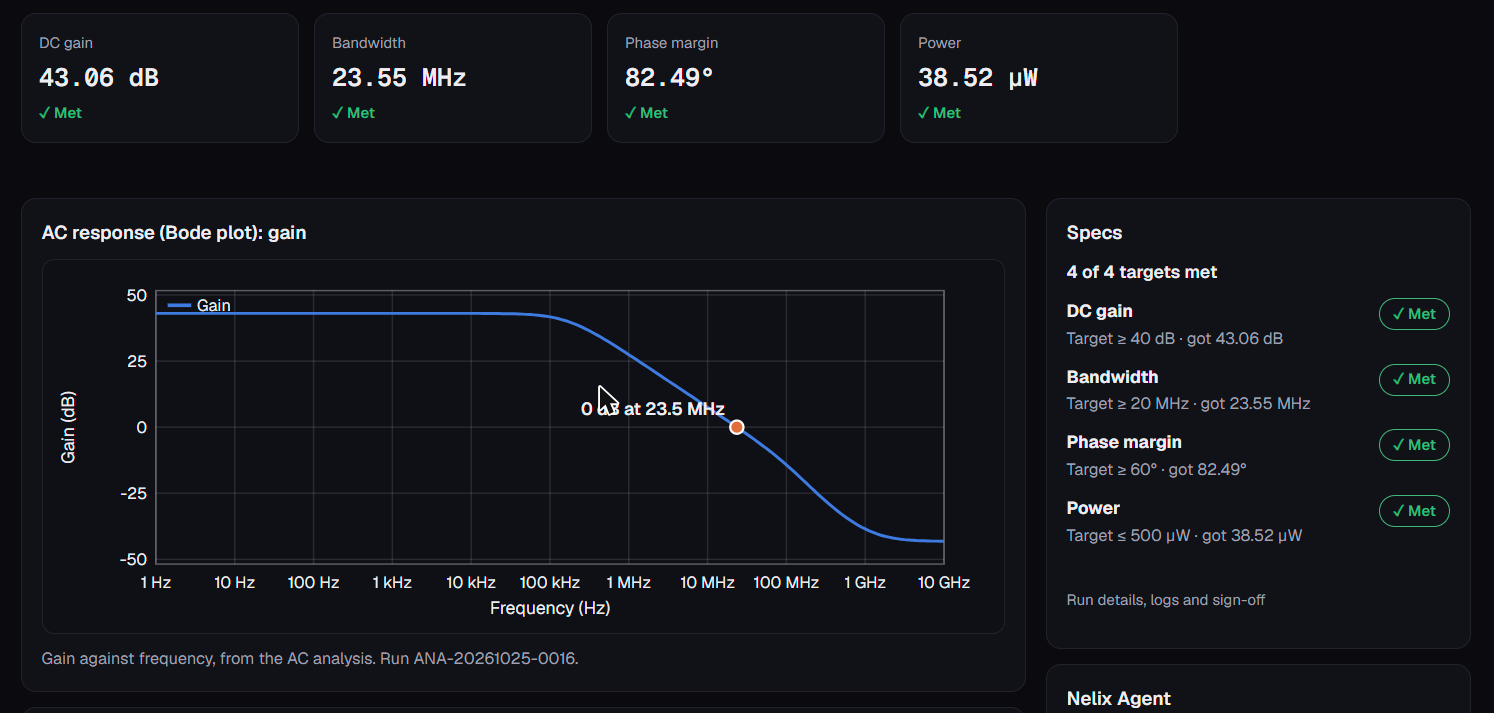
Simulate. Run simulation runs the testbench in ngspice and checks every target.
- You see the key numbers marked Met or short.
- The plots have labelled axes and the measured point marked: a Bode plot (gain and phase), the step response, DC sweeps and noise.
- The device table gives each transistor's size and its gm/Id from the simulator's own operating point.
- When a target is not met, Try it on a copy asks Nelix Agent for a fix on a copy, and Explain opens Ask AI about this circuit.
- Below the plots the Analog Pro cards follow: the interactive waveforms, the testbench form, every target with its own Ask Nelix Agent button, the spec sheet by corner and more (see Analog Pro).
- Every number comes from the run; the measured results are the authority.
- If you change the schematic after a run, every page says so at once: an orange Schematic changed after this run notice, the old numbers and plots greyed out, and the step bar and the Analog Lab home marked Changed after last run — until you press Run simulation again. The lab compares the schematic's content with the run, not the time of your last edit, so undoing a change back to exactly what was simulated clears the notice.
- An empty schematic (the Blank starter before you draw) says Nothing to simulate yet; Run simulation stays off until the sheet has devices.
Layout. Draw the circuit in your own layout tool, Magic or KLayout, with the process kit, and upload it.
- Upload a GDS or OASIS file of up to 10 MB. The lab reads it in its sandbox and shows each top cell with a picture, its size, whether all its layers belong to the project's process, and its text labels.
- Choose the cell and press Save. It is saved in your project as
analog/<circuit>.gds, exactly as you uploaded it (an OASIS file is saved as GDS). - No layout tool yet? For the CMOS inverter, current mirror, differential pair, 5-transistor OTA and ring oscillator starters (SKY130, GF180MCU and IHP) and for the bandgap reference on SKY130, the Layout step offers Use the starter layout: the lab's own layout for that process, which passed DRC and LVS against the starter's sizes (the differential pair's loads are the kit's own poly resistors, so its layout can be checked too). It goes through the same look-and-save step, so Verify and Post-layout work on it. If you changed the sizes on the Schematic step, Verify says where the layout differs. The bandgap on GF180MCU has no ready-made layout yet: the lab's layout checker misreads the kit's PNP cells, and the Layout step says so and what to draw.
- A different layout already saved is replaced only when you tick Replace my saved layout; the old file is kept next to it as
<circuit>.gds.bak-<time>. - The page lists what to draw (each part, its kit device and size, from your schematic) and the pin names your labels must use (ground is
vss), with step-by-step notes for Magic and KLayout. - No layout at all yet? Draw the layout for me makes a first layout of your schematic as it is now (see Analog Pro).
Verify. Run checks checks the saved layout in one run, usually in 10 to 30 seconds:
- DRC (design rules) with Magic and with the kit's own KLayout deck. The layout is DRC clean only when both tools ran and both found no errors. Chip-level density (fill) rules are left out: they apply to a whole chip, not to one block.
- Extraction with Magic: the devices, and the wires' resistance and capacitance.
- LVS with Netgen: the layout must be the same circuit as your schematic (without its testbench): the same transistors and sizes, wired the same way, with the same pin names.
- Each line says Pass, Fail or Not run, with the error counts and a link to the tool's own report. Each broken rule is listed with what it means in plain words, and a failed LVS says what is most likely wrong (a broken wire, a short, a size that differs).
- A schematic with ideal parts (a resistor or capacitor with only a value) cannot be compared by LVS: use the kit's device instead.
Post-layout. After LVS matches, your own testbench runs on the extracted layout. The table shows each target's schematic value, post-layout value and change in %, and whether it is still met after layout. The flow bar shows, for example, 3 of 4 targets met after layout.
Your first analog circuit#
- Press New analog project, pick the CMOS inverter starter and a process, keep the targets, and press Create project. The schematic is already drawn and wired.
- On the Schematic step, choose a transistor and change its width W. Save updates the schematic and the netlist together. The Learn panel's note uses your schematic's own widths, so it changes from "Why is the PMOS twice as wide?" to what your sizes actually do.
- Press Run simulation. A run usually takes 5 to 15 seconds.
- Read the key-number cards and the Specs panel: every target is marked Met or Not met, with the measured value beside the limit.
More circuits on a project's Analog page#
A project's own Analog page (older projects, and Add analog to one of your other projects on the classic Analog Lab page) has three further ways to add a circuit:
- From the library: textbook circuits (current mirror, cascode, common-source, source follower, differential pair, 5-transistor OTA, two-stage op-amp and more) and industrial blocks (for example a bandgap reference, an LDO regulator, a StrongARM comparator and a folded-cascode OTA). Each comes with its sizes ready to change and, for the industrial blocks, a spec sheet the results are checked against.
- Draw: place parts, wires and the process kit's own devices on a grid (low- and high-threshold transistors, thick-oxide and native devices, poly resistors, MIM capacitors, NPN and PNP transistors). Select several parts with a box, move them together, and copy or paste them. Before a drawing runs, the lab names any part that has no path to ground, so the simulation does not fail later. A drawing can be downloaded for xschem (
.sch). - My circuit: write your own SPICE netlist. Buttons insert parts and analyses with the right names for the process, and the lab checks the file before it runs.
Sweeps and sign-off#
- Sweep a parameter (on a finished run's page, and under Sweeps on the project's Analog page) runs the same circuit for several values of any parameter of the run's netlist: every transistor's W and L, every resistor, capacitor or inductor value, every source's DC value and every
.param(a design variable). One parameter gives 2 to 25 points with a line plot per target and the first failing point marked; two parameters give a grid (2 to 10 each way, at most 64 simulations) drawn as a heat map per target, with an outline round the cells where every target holds. CSV download and Ask Nelix Agent about this sweep. (The older per-drawing sweep under What to simulate in the editor still works the same way.) - Sign off (on a finished run's page) runs the exact netlist of that run at the process corners (tt, ff, ss and the two skewed corners) and temperatures, and a Monte Carlo run for random manufacturing spread. The results page shows a corner-by-temperature grid and, with Monte Carlo samples, a Yield card: per target a histogram, how many samples meet it, mean, sigma and a Cpk-style margin, plus "N of M samples meet every target". The form shows the most samples each process allows (60 on SKY130, 200 on GF180MCU and IHP SG13G2). A large or slow circuit can still run out of time; its page then says stopped early and shows the samples that finished. For the measured numbers of every industrial block, the limits, and how to read each part of a run page, see Analog design and sign-off.
- Spec sheet by corner (on the Simulate step) is the quicker corner check of the current schematic, with the supply varied too: see Analog Pro.
The run page#
A run's page starts with the numbers: each measured value with its unit, its spec and how much margin it has (pass, near or fail). The curves, the schematic and the netlist follow below.
Three processes#
| Process | Supply |
|---|---|
| SkyWater SKY130 | 1.8 V |
| GlobalFoundries GF180MCU | 3.3 V |
| IHP SG13G2 | 1.2 V |
The process kits and ngspice come from the IIC-OSIC-TOOLS 2026.10 tool set. Every run lists the exact versions it used.
Ask AI about this circuit#
On a run's page, Ask AI about this circuit asks Nelix Agent about your circuit and its measured results, including its specs, sweeps and sign-off. Every Ask Nelix Agent button on the analog steps carries the measured numbers, and the Agent opens the run itself by its id (ANA-…), so it reads the run's log, its measurements against your targets and, for a layout run, the DRC and LVS summary. It can also review a design against its spec sheet. It uses your plan's Nelix Agent allowance. In a class, the teacher can switch it off for an assignment. Every Analog Pro card below has its own Ask Nelix Agent button, whose question already carries that card's measured numbers.
Analog Pro#
The Analog Pro cards are on for every account since 31 October 2026 (the owner can hide them all at once with one switch). Each one is a card on the step it belongs to, and every number on it is read from a real run; nothing is estimated.
On the Schematic step#
Operating point on the drawing. After a run, each transistor on the schematic shows its Id, gm/Id, overdrive and region (saturation, triode, off), read from ngspice's own operating-point table of the newest run, plus the same as a table. Ask Nelix Agent asks whether each transistor is in the right region.
Design variables (Schematic step). Name a value once (W_IN, L_IN, IBIAS, CL ...) and bind device properties to it: a transistor's W or L, an ideal resistor's or capacitor's value, a source's DC value. Matched devices then change together. The netlist gets one .param line per variable and the bound property reads it, in the xschem file too, so a sweep (which lists every .param), a sign-off and the corner spec sheet all follow it. Typing a size by hand on a bound device unbinds that property.
Size it for me (Analog Pro, on the Schematic step of an analog project) sizes the circuit for your targets. One press: Nelix Agent says which widths, lengths and ideal values matter and proposes a starting point; a bounded loop of ngspice simulations (a budget you set, 6 to 30, 12 by default) then moves those sizes within the process kit's limits until every target on the Simulate step is met or the budget is spent; Nelix Agent then explains, from the measured numbers only, what was changed and why. The best sizes are proposed on a copy, shown exactly like a Draw it for me suggestion with the same Accept and Discard buttons, so nothing in your design changes until you accept; after Accept, press Simulate to confirm. The panel shows every candidate the loop tried with its measured numbers, and if no candidate meets every target it says so and names the shortfall of the best found. Each run uses two Nelix Agent requests (one to plan, one to explain) and runs while the page is open; fingers, models and the testbench stay as drawn.
Move this design to another process (Schematic step). Makes a new project on the process you choose: the same schematic with every device re-mapped to that kit's models (the same flavour where the kit has it, otherwise the nearest, each change listed), transistor sizes scaled so W/L is kept and nothing is below the kit's minimums, kit resistors and capacitors mapped to the matching kind, the sources at the new supply voltage, the same targets and the starter's testbench for that process. The simulation runs there, and the new project's Simulate step shows what was re-mapped with the source project's measured numbers next to the new ones. A design with a part the other kit does not have in the lab (a PNP on IHP SG13G2, for example) is refused with the reason.
On the Simulate step#
Waveforms. The run's own curves (transient, DC sweep, AC gain and phase, noise) drawn in the browser: the mouse wheel zooms, drag pans, double-click shows the whole run; two cursors (click to place) with a readout of every trace at both and the difference (on a transient plot also as a frequency); linear or log axes; Overlay a previous run draws any finished run of the project, including a post-layout check, dashed over the current one. Compare runs puts two runs' measurements side by side with the change in %, with an Ask Nelix Agent button. The same viewer is on the Post-layout step.
Testbench. The testbench as a form: each source's DC value and waveform (none, PULSE or SIN, with named fields) and each analysis's settings (transient step and stop, DC sweep range, AC and noise points and frequency range). Saved settings stay with the project and the next run uses them; Back to the starter restores them. The card's Ask Nelix Agent asks whether this stimulus measures every target.
More measurements as targets (Simulate step). The amplifier starters now measure more in the same ngspice run, and each number is a target with a default limit per process (90 % or 125 % of what the starter reaches at the typical corner), judged pass or fail like the others:
- 5-transistor OTA: supply rejection (PSRR: the differential gain minus the gain from an AC on VDD to the output, at 1 kHz), common-mode rejection (CMRR: the differential gain minus the gain with both inputs driven together, at 1 kHz; the testbench has a second source
Vcmnon the (−) input for this), slew rate (10 % to 90 % of the output swing on a step of 15 % of VDD, as a unity-gain buffer), settling time (to 1 % of that swing) and input noise (the input-referred noise integrated from 10 Hz to 1 MHz, in V rms), next to DC gain, bandwidth and phase margin. - Differential pair: PSRR (single-ended output) and input noise, next to gain, CMRR and bandwidth.
- CMOS inverter: input noise at the switching point. Bandgap: output noise.
On the Simulate step the Targets, measured card lists every target with its measured value, its limit and its status, each with its own Ask Nelix Agent button that carries that value and the target. A project made before 31 October 2026 shows Add them to my targets: one press adds the new targets (and, for an OTA, the Vcmn source, with Undo on the Schematic step); run the simulation again to measure them. The testbench form, sweeps and Compare runs show the new measurements like any other.
Spec sheet by corner (Simulate step). Choose process corners (the kit's own model sections are shown next to tt, ss, ff, fnsp, snfp), the supply (VDD, −10 %, +10 %) and temperatures (−40, 27, 85 °C), and Run corners: one run repeats every analysis and measurement of your current schematic at each point, within the usual 5-minute limit (the card estimates the time from your last run and refuses a plan that would not fit). The sheet shows every target at every point with pass or fail, the worst point per target, N of M targets met at every point, a CSV, and Ask Nelix Agent about the corners with the worst cases. Monte Carlo mismatch stays in Sign off on a run's page.
High-sigma Monte Carlo (Simulate step). From the design's newest sign-off run with Monte Carlo samples, the card fits a normal distribution to each target's samples and gives its sigma margin (the distance from the mean to the nearest limit, in sigmas), whether the design still meets the target at 3, 4.5 and 6 sigma, and an estimated failure rate from the fit. It is labelled honestly: the failing samples count is measured, but any rate smaller than about 1 in N (N = the samples in the run, at most 60 on SKY130 and 200 on GF180MCU and IHP) is an extrapolation of the fit, never a measured yield. When the sign-off run also had corners and temperatures, the worst corner point per target is named (a measured worst-case corner search).
Aging / stress check (Simulate step). "After 10-year stress estimate": the same testbench runs again on a copy of the newest run's netlist with every kit transistor shifted the way long-term stress moves one: a threshold-voltage shift you set (default +30 mV, a small source in series with the gate) and a drive-current loss you set (default −5 %, the width scaled). The table shows each target fresh against after stress, the change, and whether it is still met. It is a model shift, not a foundry aging model (the open kits publish none), and the card says so.
Drive it from a Verilog block (Simulate step, mixed-signal co-simulation). A starter testbench option: a small Verilog module (a 4-bit counter by default; edit it, keeping the module name nx_digital and its ports) runs inside the same ngspice run through ngspice's d_cosim model with Icarus Verilog, clocked by a pulse source you set; one of its output bits replaces a testbench source and drives your circuit through a digital-to-analog bridge. The circuit's own measurements run as they are (a DC sweep of the replaced source and the operating point are left out), plus the measured clock period and the driven bit's period; the waveforms are on the run page.
Show on my share page. With a share link made for the project, the public page also shows the analog results: the circuit drawing made by the lab (device names and values, never your files), the targets with the newest run's measured values, the plots, and the layout's DRC / LVS verdict with a picture. Turn it on or off from the Simulate step.
On the Layout and Verify steps#
Draw the layout for me (Layout step) draws a first layout of your schematic as it is now: the lab makes every part with the process kit's own device generator in Magic at your current widths and lengths, places the cells in one row, wires the nets (gate nets above the row, the others below) and labels the pins, all inside the lab's analog image with the same sandbox and limits as a run (a few seconds). The file then goes through exactly the same path as an upload: you see its cell, it is saved as your layout, and the Verify step runs DRC, LVS, extraction and the post-layout simulation on it. Only Verify's measured result says whether the layout is right; the card shows that result and Ask Nelix Agent about this layout carries it into Design Chat. Proven on the CMOS inverter and the current mirror on all three processes, at the starter's sizes and at changed sizes (DRC clean, LVS match). Ideal parts (a plain resistor or capacitor value) cannot be drawn: use the kit's devices first (the starters do; the differential pair's loads are the kit's poly resistors). Proven live on the inverter, the current mirror and the differential pair. It is a correct starting layout, not a hand-optimised one (no shared guard rings, no matching).
Your layout, layer by layer (Verify step). After a check, the saved layout is drawn one layer at a time in the kit's colours; hide or show each layer, zoom, and see KLayout's design-rule violations drawn where they are and listed by rule, and Magic's rules by count. Ask Nelix Agent about these rules explains each broken rule and how to fix it.
On the Post-layout step#
IR drop and current density (Post-layout step). From the extracted layout and the post-layout testbench's DC operating point, one run reads every node voltage; the card then lists the current through every resistor Magic extracted at the top level of the layout cell, grouped by net, the worst IR drop on each supply or ground net, and the narrowest metal-1 wire that could carry each branch's current at the kit's own published limit (SKY130 met1 2.8 mA/µm from the kit's technology LEF; GF180MCU Metal1 0.67 mA/µm at 125 °C from its technology LEF and design manual 14.2; IHP SG13G2 Metal1 1 mA/µm from the SG13G2 process specification, section 2.15). The extraction keeps resistor values but not wire widths, so the card gives per-branch currents and the width each needs rather than a density per segment, and says when a minimum-width wire is enough. On a small layout whose metal is below Magic's extraction threshold only the substrate and well meshes appear, and the card says so.
Size it for me, Draw the layout for me and the reliability cards (high-sigma Monte Carlo, aging / stress, IR drop, the Verilog block, moving a design to another process) carry the measured numbers into Design Chat; the Agent explains from them and never changes a design by itself.
Learn analog from zero#
Learn analog from zero is a course of 36 short lessons, each with its own simulation, at Open the lessons. Each lesson has a checklist (predict, run, questions, challenge) that ticks itself off as you go (a class assignment built on the lesson that meets its goal ticks the challenge too), and the index shows how many lessons you have completed. The lab remembers how far you got. A glossary and a cheat sheet are linked from the Analog Lab home.
Analog Studio#
Open the Studio has five parts: Hear your circuit (listen to a filter), Sizing playground (size an amplifier with live numbers), Layout game (draw a transistor layout), The analog team (meet a customer spec at every corner) and Silicon vs simulation.
The Studio runs in your browser on textbook models, labelled as such. It does not start a SPICE run; each part links to the lesson that runs the same circuit in real SPICE.
Good to know#
- Up to two analog runs go at a time on the server, and a run may take up to 5 minutes.
- The Analog Lab's sign-off is a simulation study, not a foundry sign-off. The layout checks (DRC, LVS, extraction) use the open process kits' own rule decks and run at the typical corner; a real tape-out needs the foundry's full sign-off.
- The layout steps are for analog blocks: one layout file of up to 10 MB, checked within the 5-minute run limit.
- The digital flow (Simulate, Synthesize, Build the chip) is separate and is not changed by anything you do here.
Something unclear or missing? Send feedbackSign in and use Feedback to tell us.